Integration with Msty
How to set up Msty for accessing neural networks via BotHub
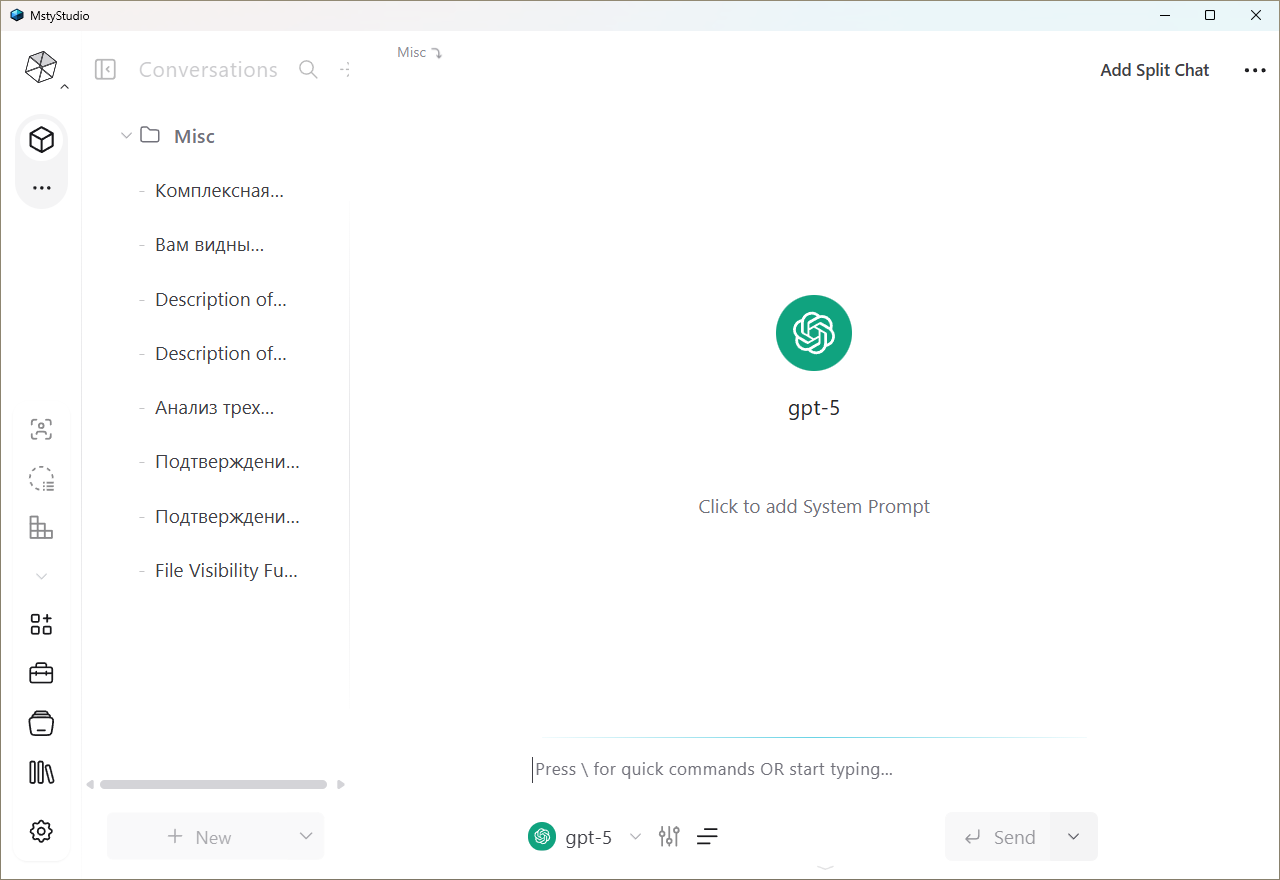
Msty (also Msty Studio) — a functional program for accessing neural networks from Windows, Linux, or macOS.
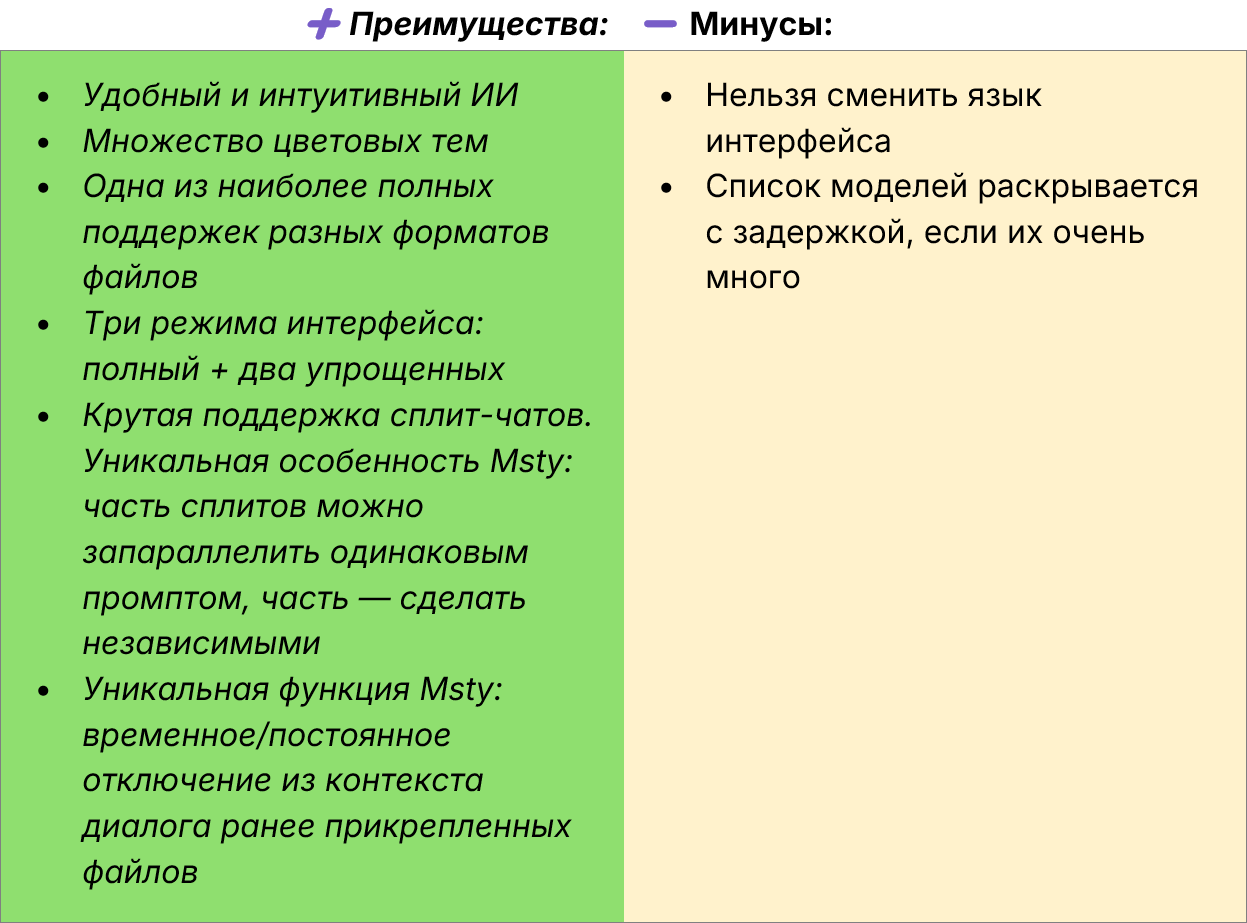
🛠️ How to install
Download the installer from the official website. Additional installation details can be found here.
⚙️ How to connect and what to configure
Msty does not support the Russian language, so the following settings are described in English. However, you can communicate with the chatbots in any language.
1. Go to the Model hub.
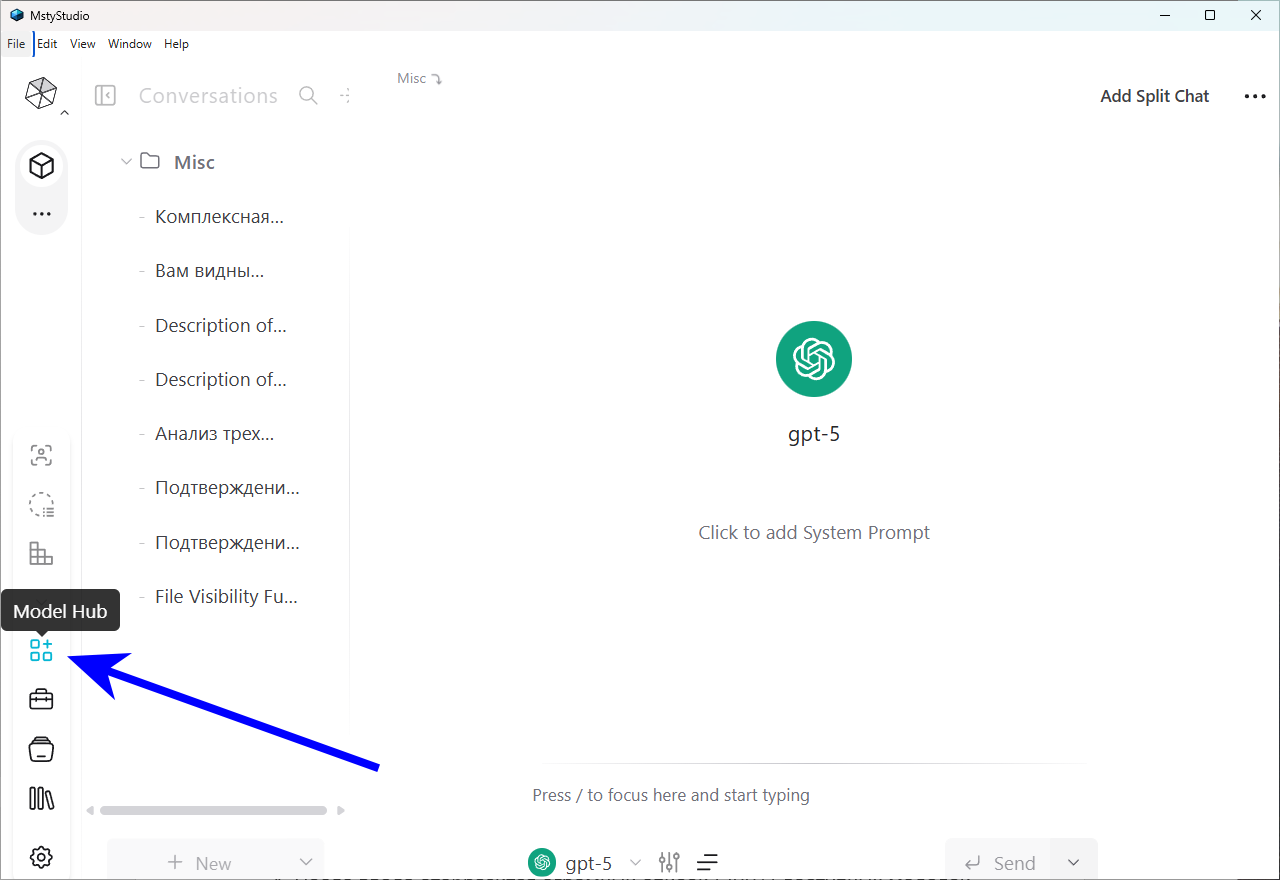
2. Click Configure cloud providers.
3. Enter the parameters:
-
Models provider: Select Open AI-compatible.
-
API key: Enter your key-password.
-
Inference endpoint:
https://openai.bothub.chat/v1. -
In the bottom field, Give it a unique name (optional), enter the provider name "BotHub".
4. After entering, a list of available models will appear. To add all at once, just check the top checkbox.
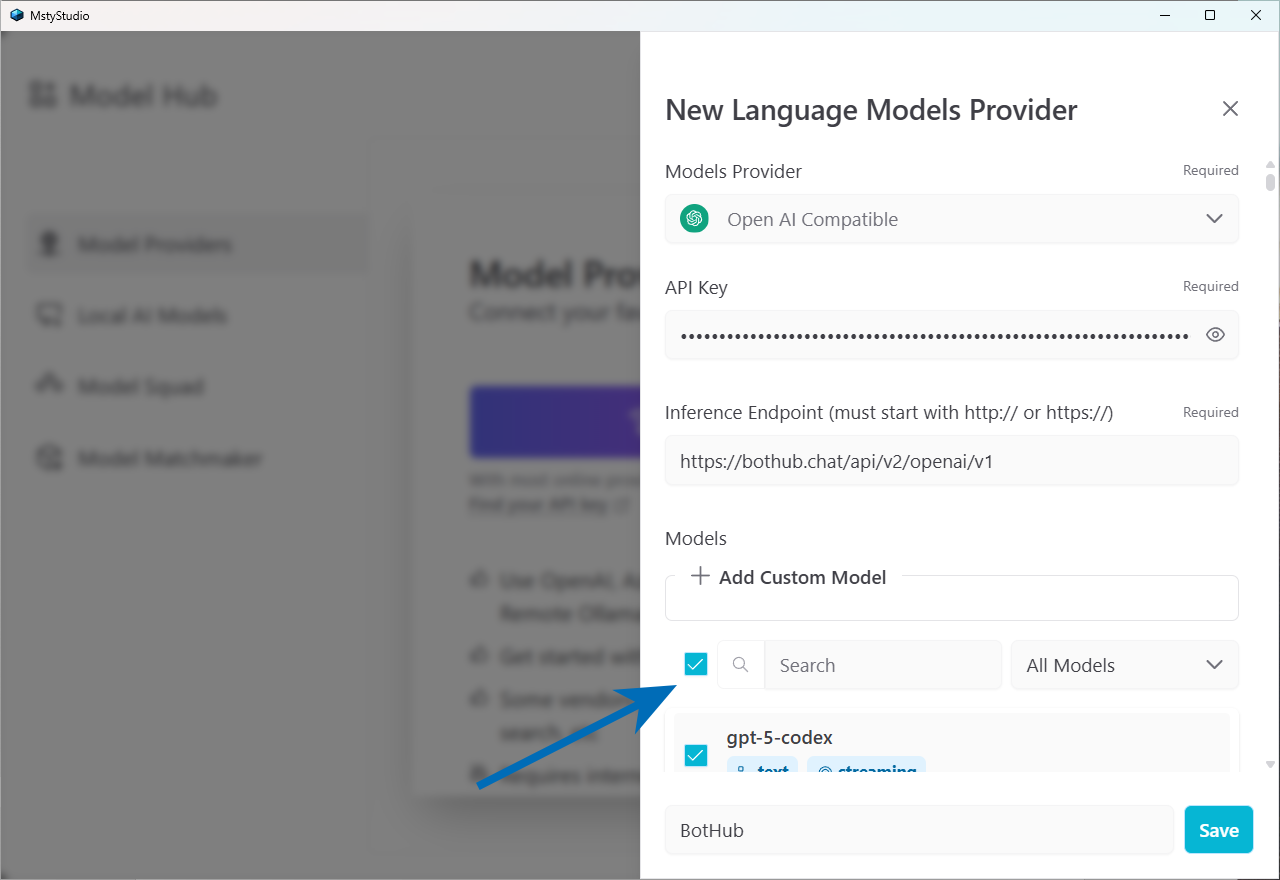
5. Click Save.
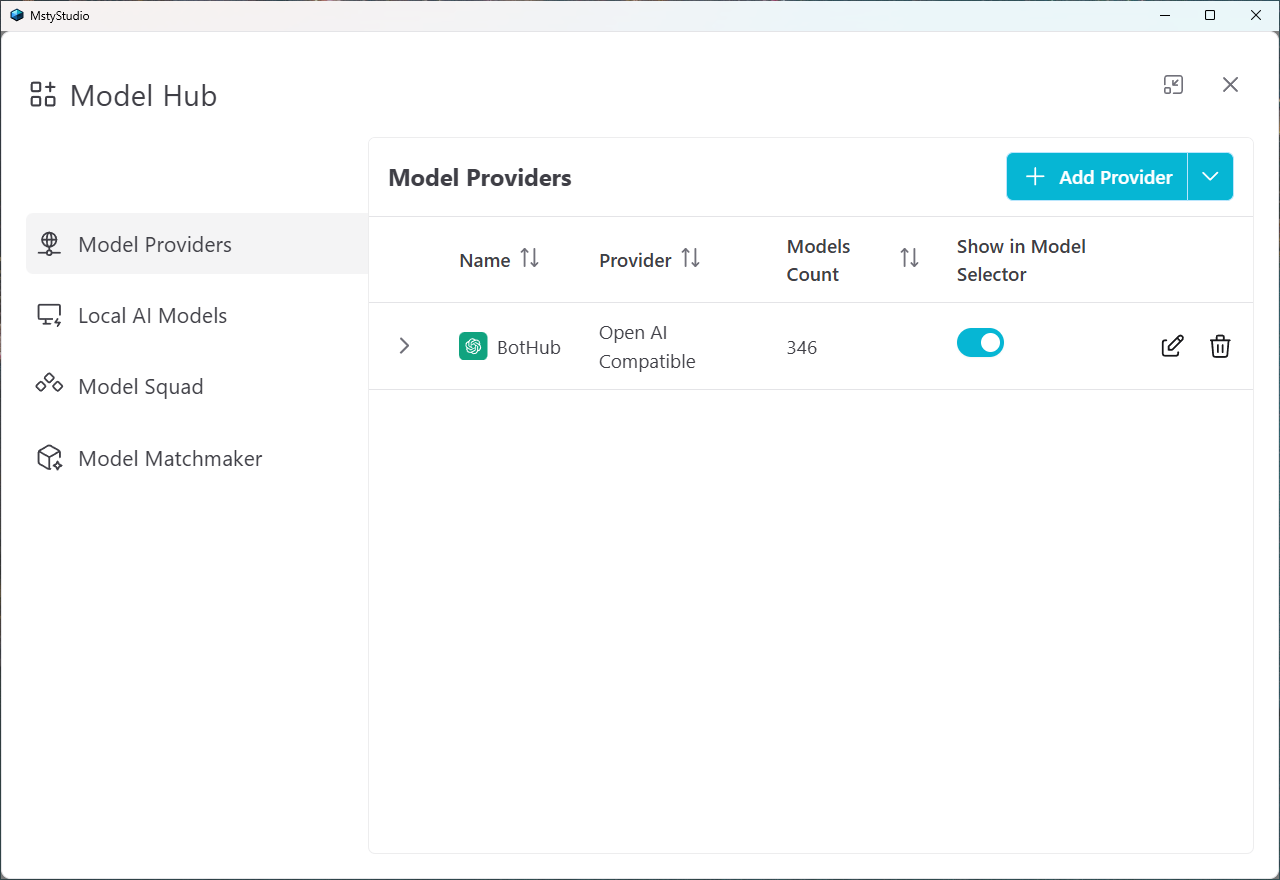
6. In the Prompts library (second icon from below), you can create prompt templates — ready-made phrases that are convenient to insert via ☰ → Prompts library.
7. Other important settings (section Settings):
- General → Mode → Choose between:
— Normal mode (shows all interface elements);
— Focus mode (displays only necessary elements);
— Zen (absolute focus mode: only dialogue and input field).
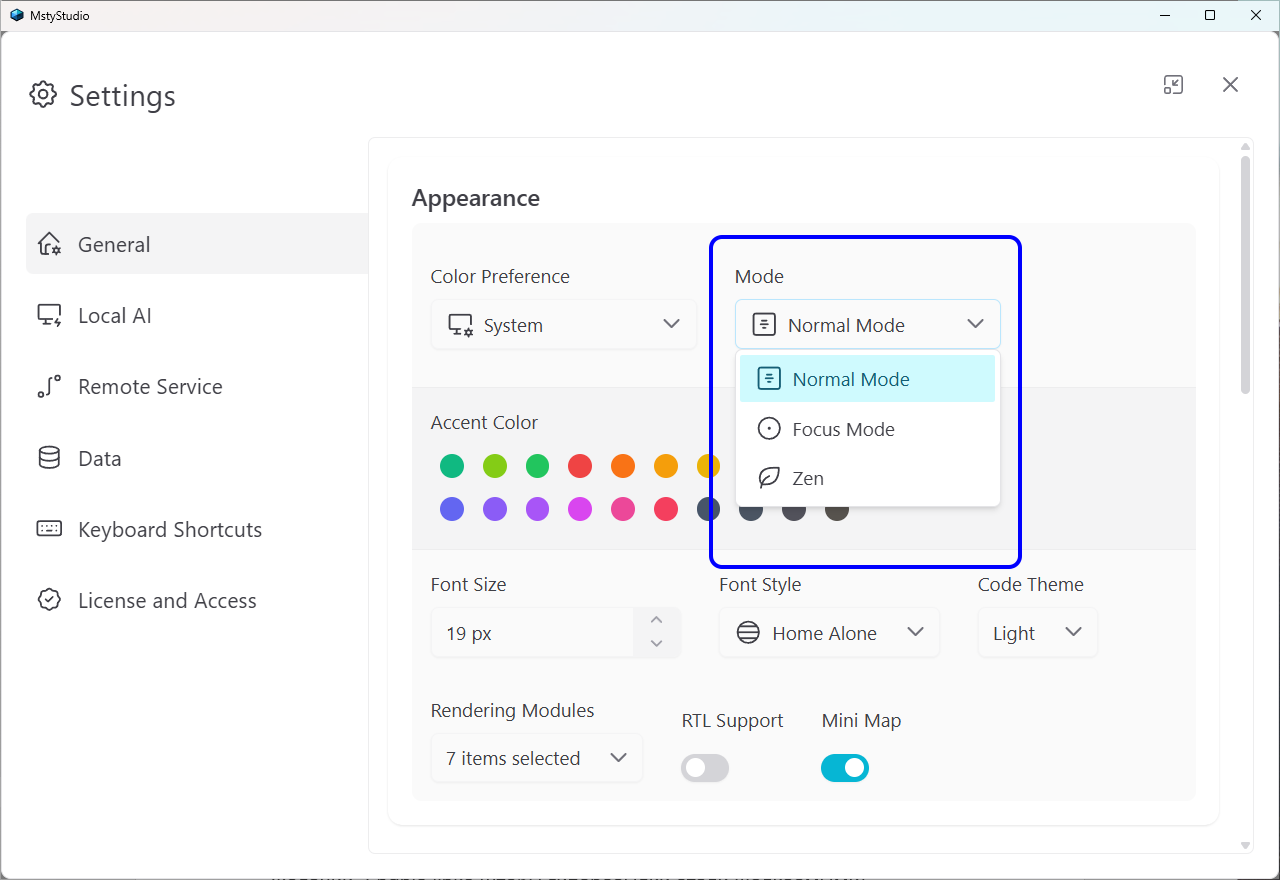
- General → Rendering modules. Here you can enable:
— Mermaid diagrams (to visualize diagrams),
— Math LaTeX (for displaying formulas),
— Enable links — links from the chatbot will become clickable.
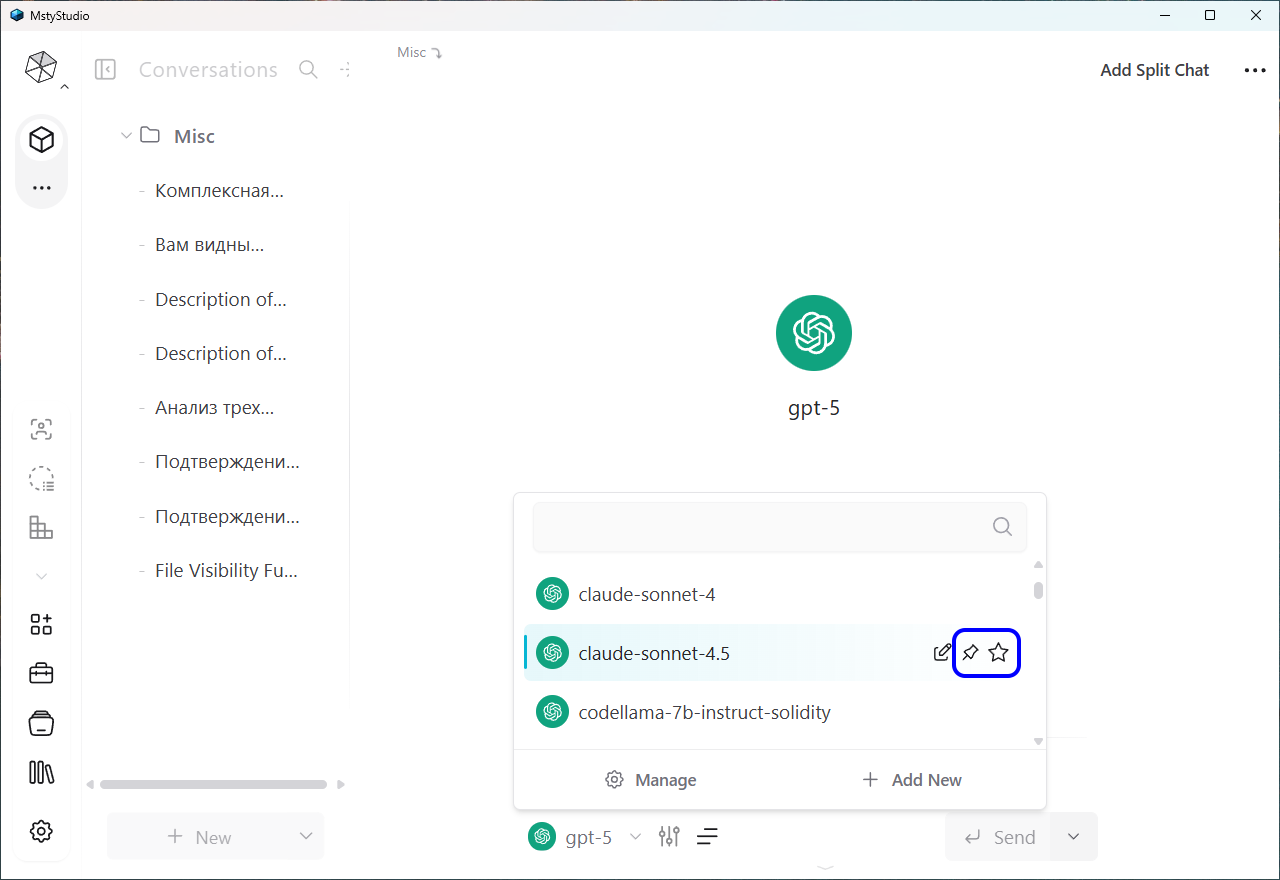
8. In the models list (main window), you can pin your favorite models using the 📌 Pin ... button, and set the default model (e.g., gpt-5) by clicking ☆ Set ... as default.
🧙 How to use Msty
To start working with Msty, select a model, write a message (attach files if available), and press ⏎ Send. Responses load in streaming mode.
Split chats
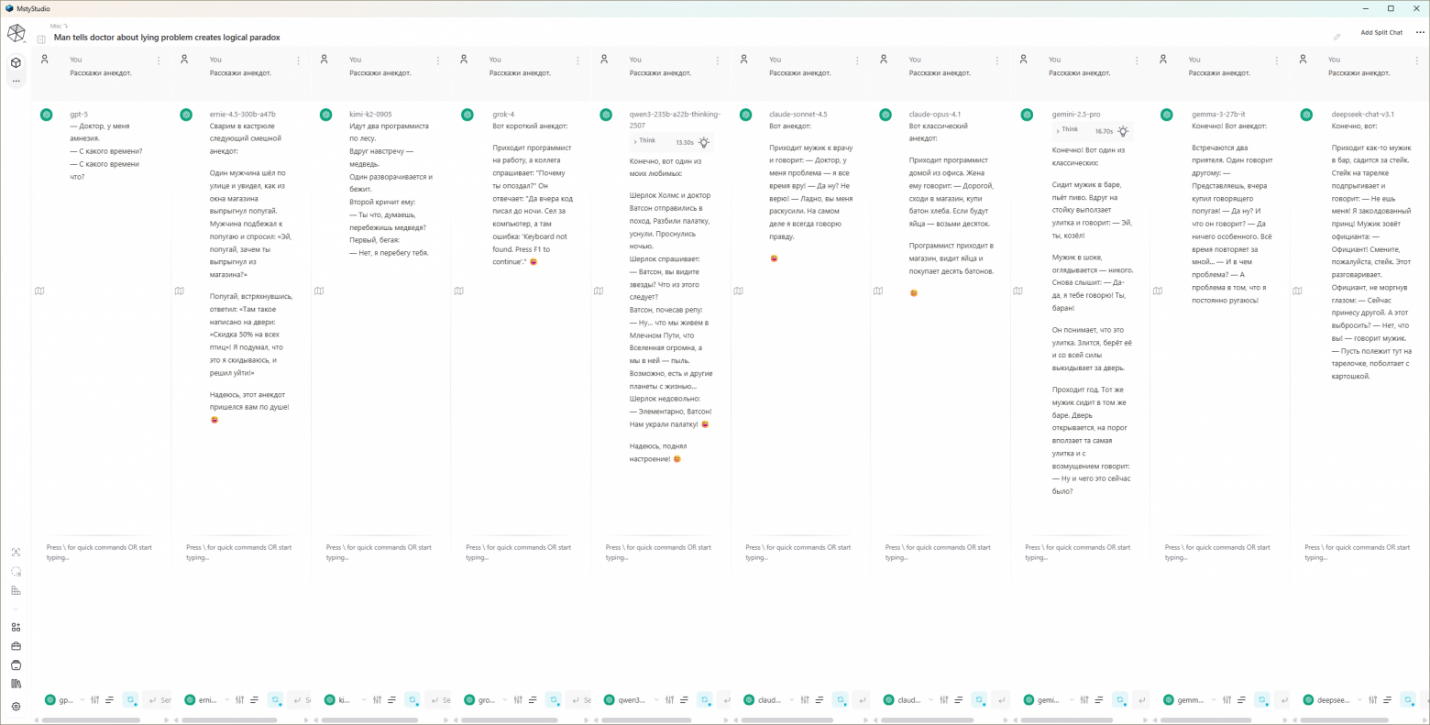
A unique feature of Msty is split-chats: you can display multiple dialogues on the screen simultaneously, some or all of which can be run in parallel by sending the same prompt synchronously. Models in split windows can be the same or different.
Up to 10 split chats can fit on a widescreen. If you create more, they will only display after removing some of the splits (via ⋮ → Remove split).
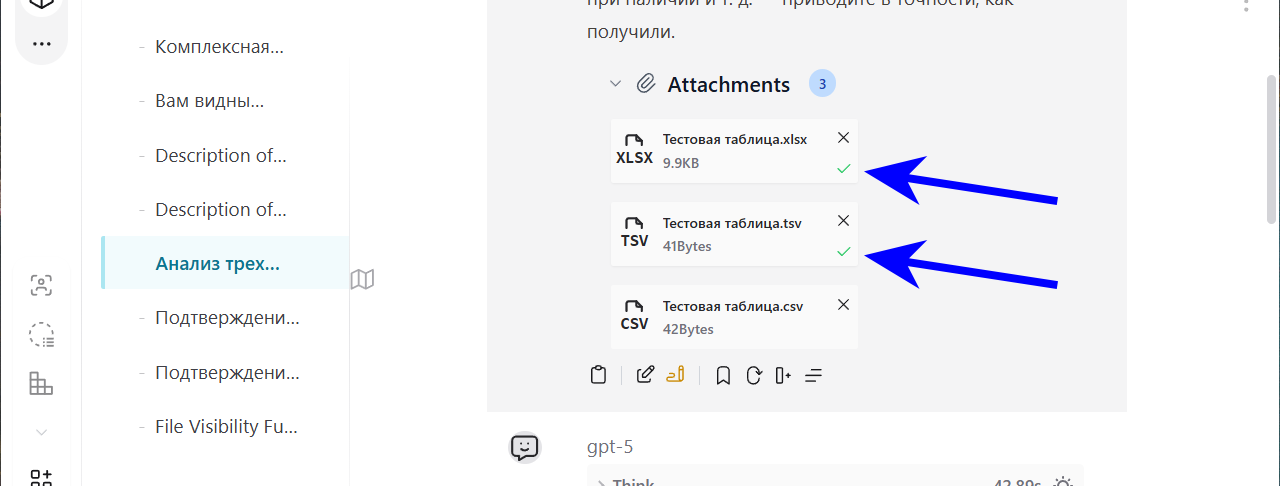
Excluding a file from context
A file previously added to a dialogue can be excluded from the context. To do this, click the indicator checkbox of the specific sketch. You can re-include the file at any time.
In the next screenshot, the checkbox of the bottom file is unchecked — meaning it is excluded from the context:
Additional info:
More detailed article: https://habr.com/ru/companies/bothub/articles/953986