Integration with ChatBox
How to set up ChatBox for neural network access via BotHub
Note. The Kaas program has limited features. If you need more flexibility, it's better to choose one of the following solutions:
• Msty, Cherry Studio (for Windows, Linux, macOS);_
• Open WebUI (server + browser access).
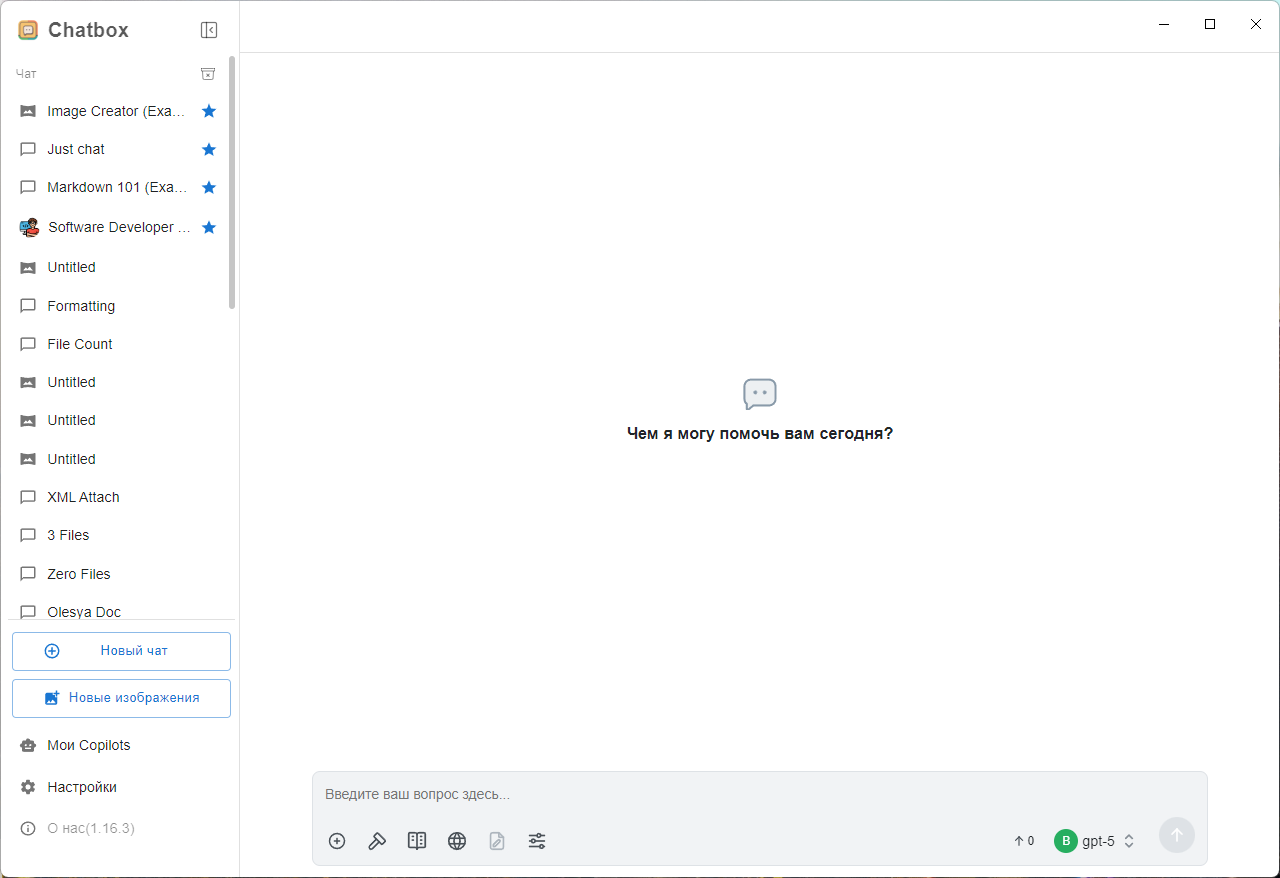
ChatBox is an open-source client for chatbots. Besides the desktop version, there is a mobile app for Android and iOS.
🛠️ How to install
-
For Windows, Linux, macOS download and run the installer.
-
For Android, there are two options: Google Play or directly via .apk file.
-
iOS — in the App Store.
⚙️ How to connect and configure
To enable the Russian interface language, open Settings → General settings → Language and select Russian.
Now let's proceed to API connection.
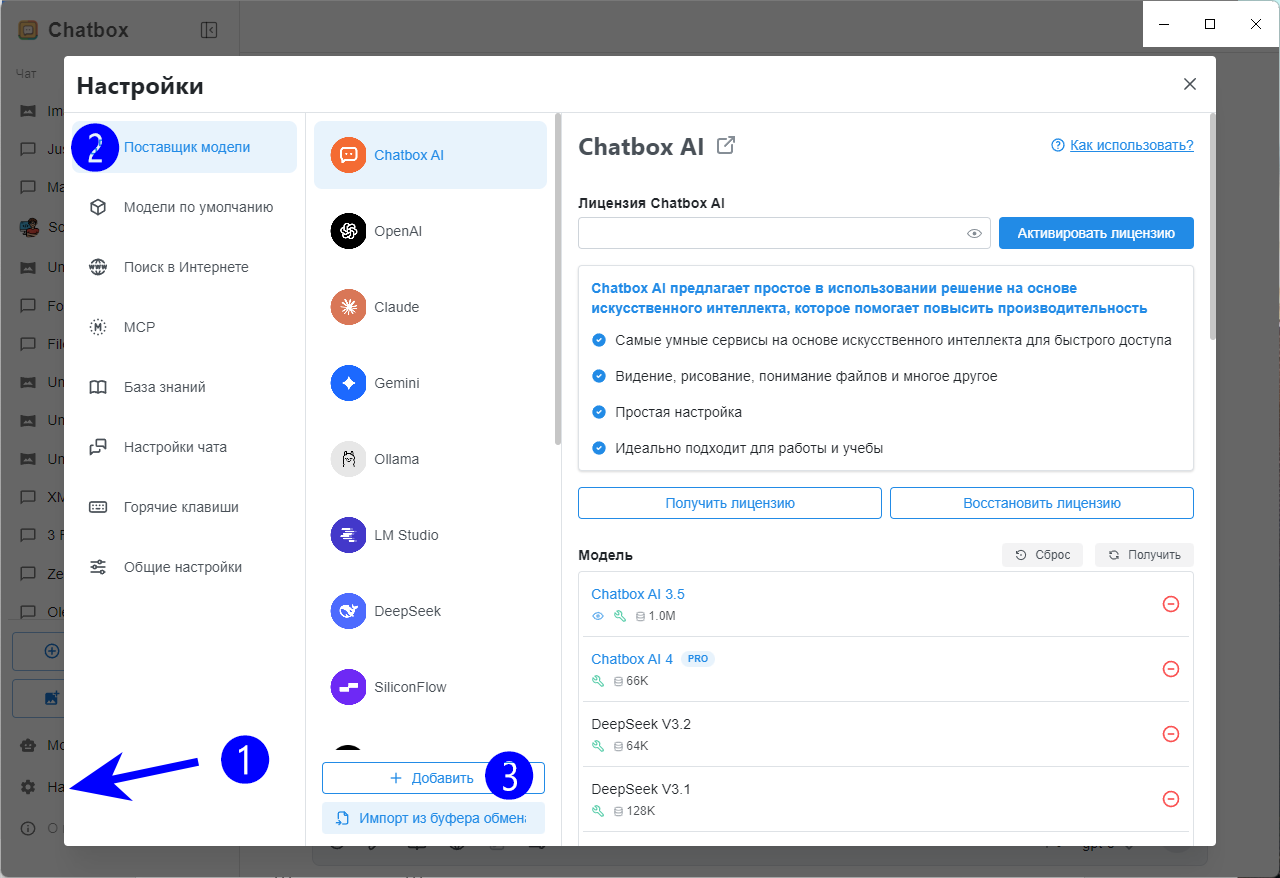
- Go to Settings → Model provider and click Add.
-
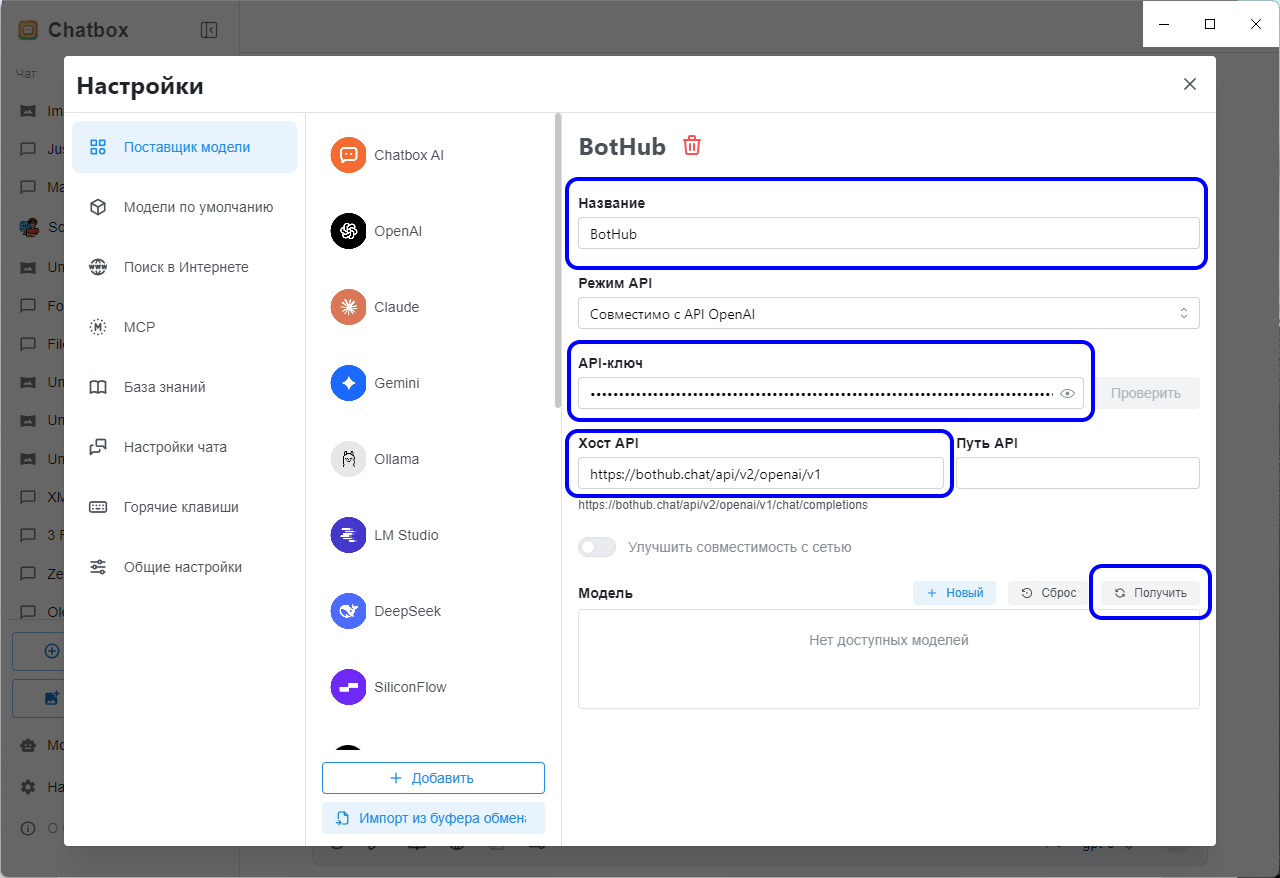
Enter the provider name: "BotHub". Click Add.
-
In API mode list, only one option is available. The other fields are filled as follows: — API key can be generated/copied via this link. — API host: https://openai.bothub.chat/v1.
-
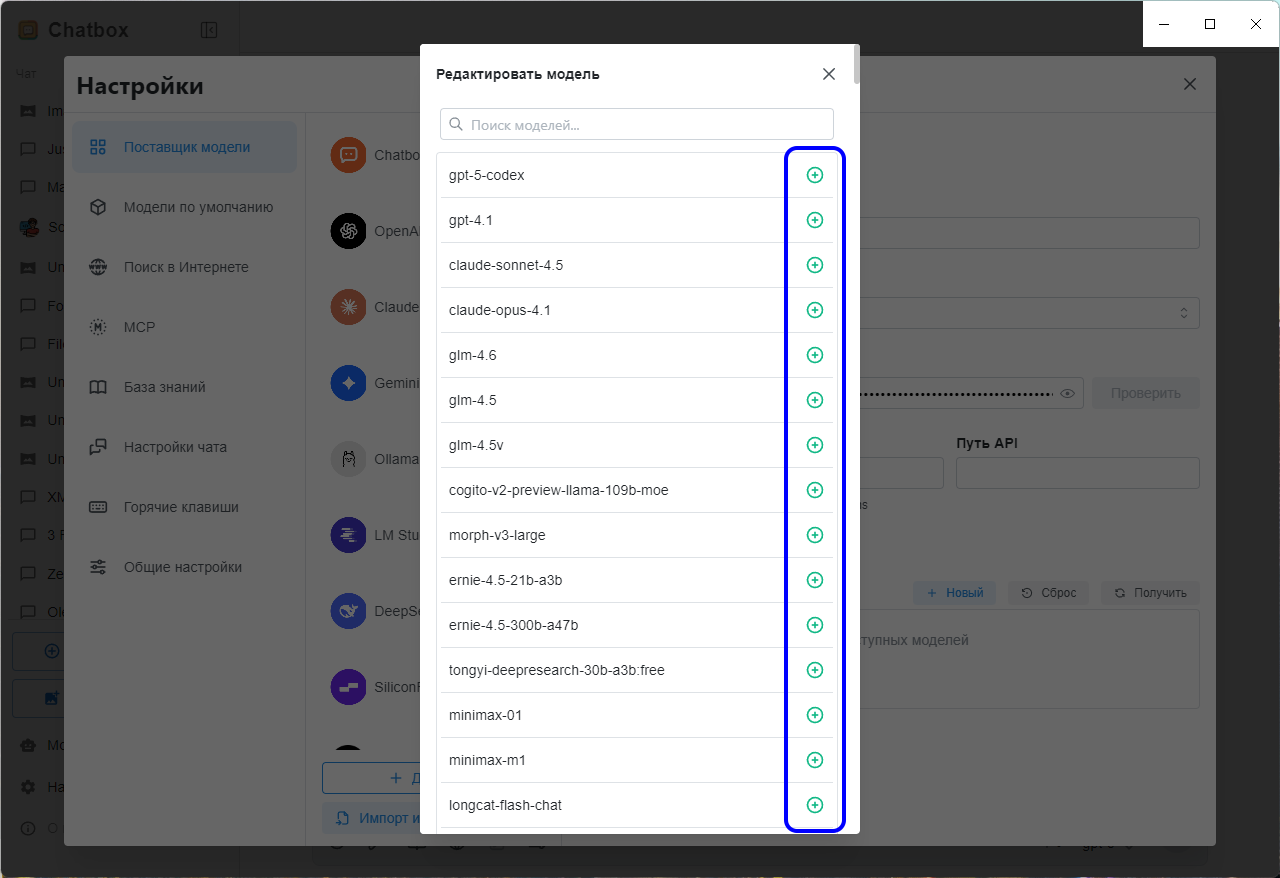
Click Get, and ChatBox will display a list of available models.
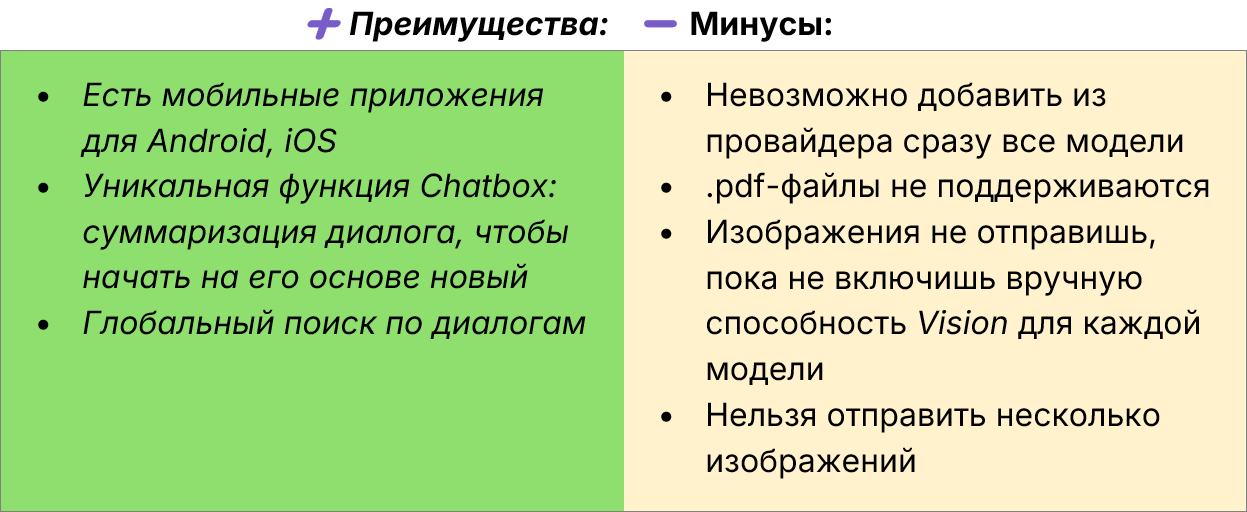
Adding all models at once in this program is not possible — you need to manually click on the “plus” icon next to each to transfer it to the general list.
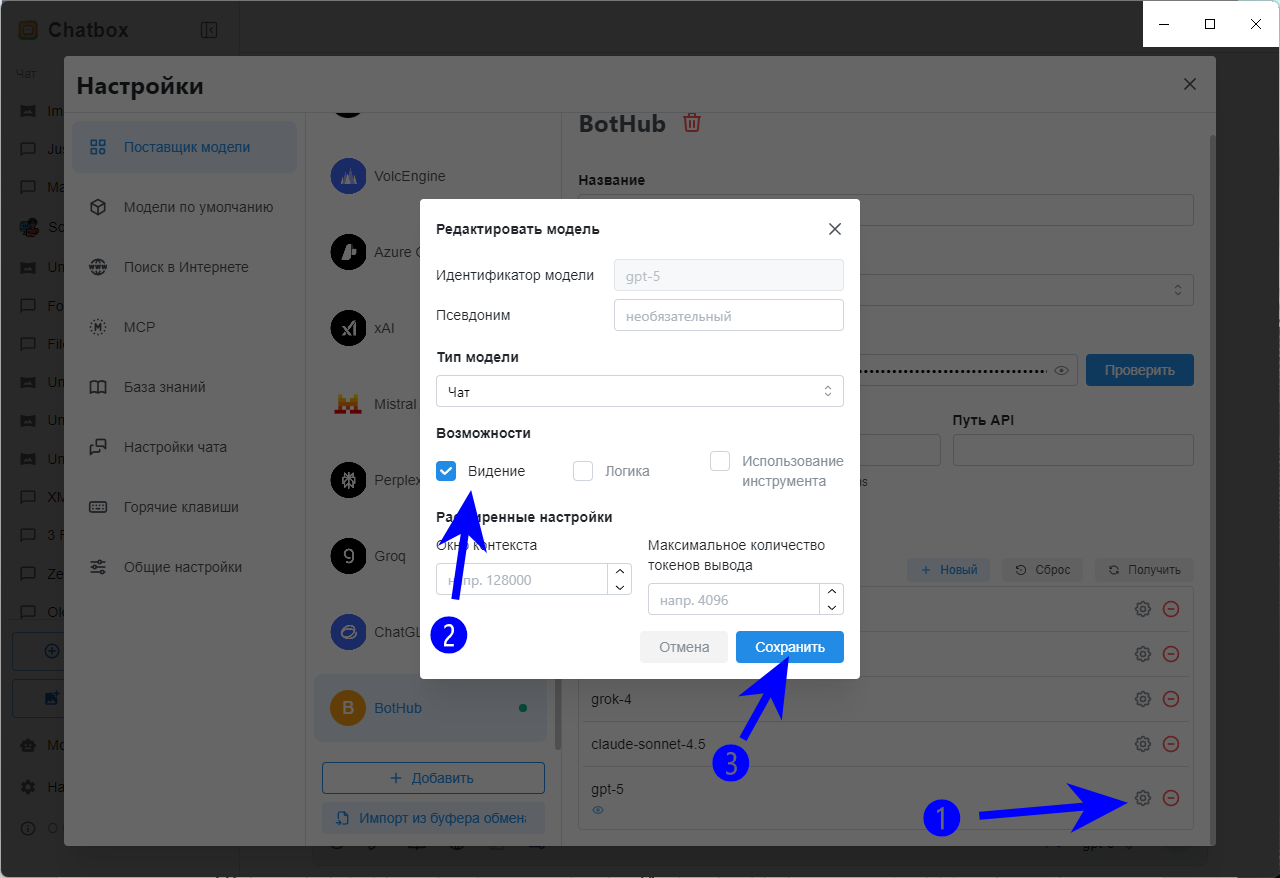
- There are features for image sending: to enable this feature for a model, you need to activate it beforehand. To do so, open the settings of each such model (via the ⚙️ icon) and enable Vision.
- A few more useful settings:
-
Default models → Default chat model — select, for example, gpt-5.
-
Default models → Default topic naming model. A lightweight model like gpt-oss-20b or qwq-32b is suitable. It will generate dialog names.
-
Chat settings → Maximum number of messages in context. Set to No limits so that the context window has no additional limits.
-
Some ChatBox versions have a keyboard bug: the Ctrl key opens the settings window. If this issue occurs, go to ⚙️ → Hotkeys and remove the shortcut for Open settings.
-
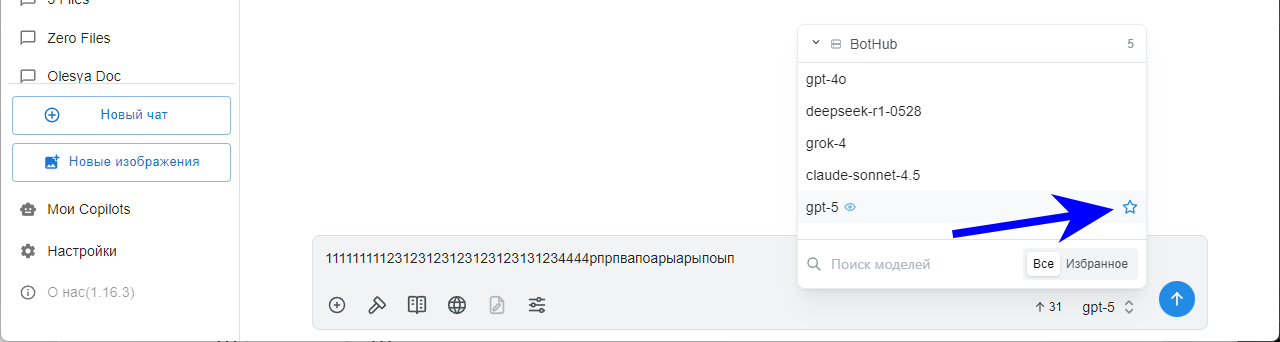
Also, pin your favorite models at the top of the list by clicking the ☆ icon next to them.
🧙 How to use ChatBox
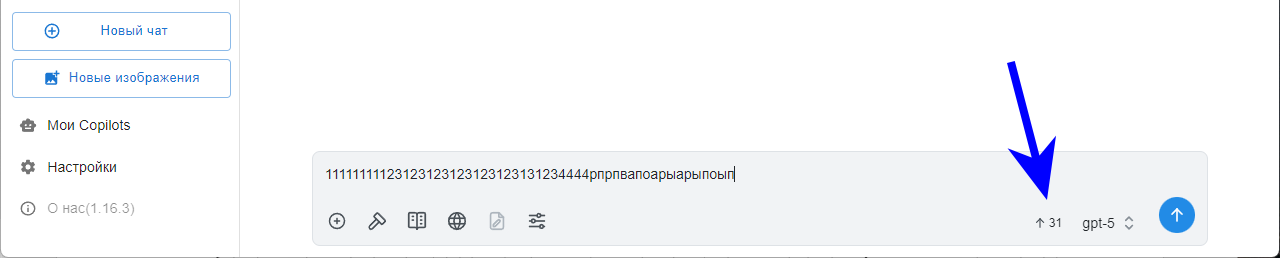
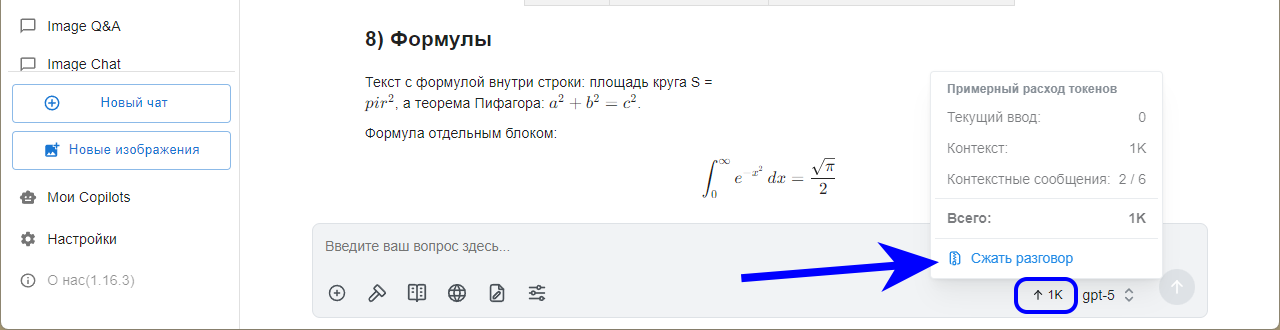
ChatBox shows the number of tokens even before sending a message. The indicator is located in the bottom right corner of the prompt.
To start, select a model, write a prompt, and press Enter.
Dialogue summarization
The compression of dialogue function converts a long conversation into a summary from which you can start a new topic. This is useful when you want to reset the context window during a long conversation with a chatbot, preserving the main meaning of the conversation.
Here's how to compress a dialogue in ChatBox:
-
Hover over the token indicator.
-
Click Compress conversation.
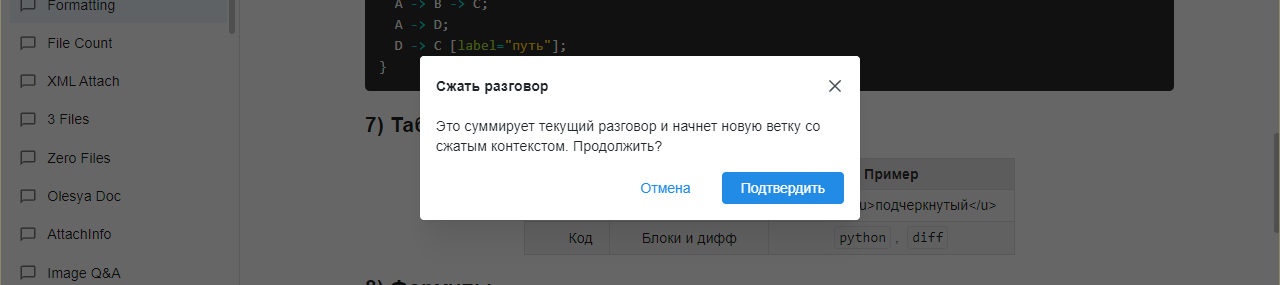
The resulting topic will appear in the same dialogue but with a clean context — the model will no longer remember the old conversation. Visually, this is convenient: you see the history and can scroll up, but for the model, everything starts anew.
If you want to start a new topic in the same dialogue without summarization, click Start new topic at the bottom of the window. (In the BotHub interface, the equivalent is the Reset context button.)
Working with files
ChatBox has limitations when working with files:
-
.pdf format is not supported (.docx is suitable).
-
You can attach multiple files of different formats, but no more than one image at a time.
More detailed article: https://habr.com/ru/companies/bothub/articles/953986