Cherry Studio Integration
How to Configure Cherry Studio for Neural Network Access via BotHub
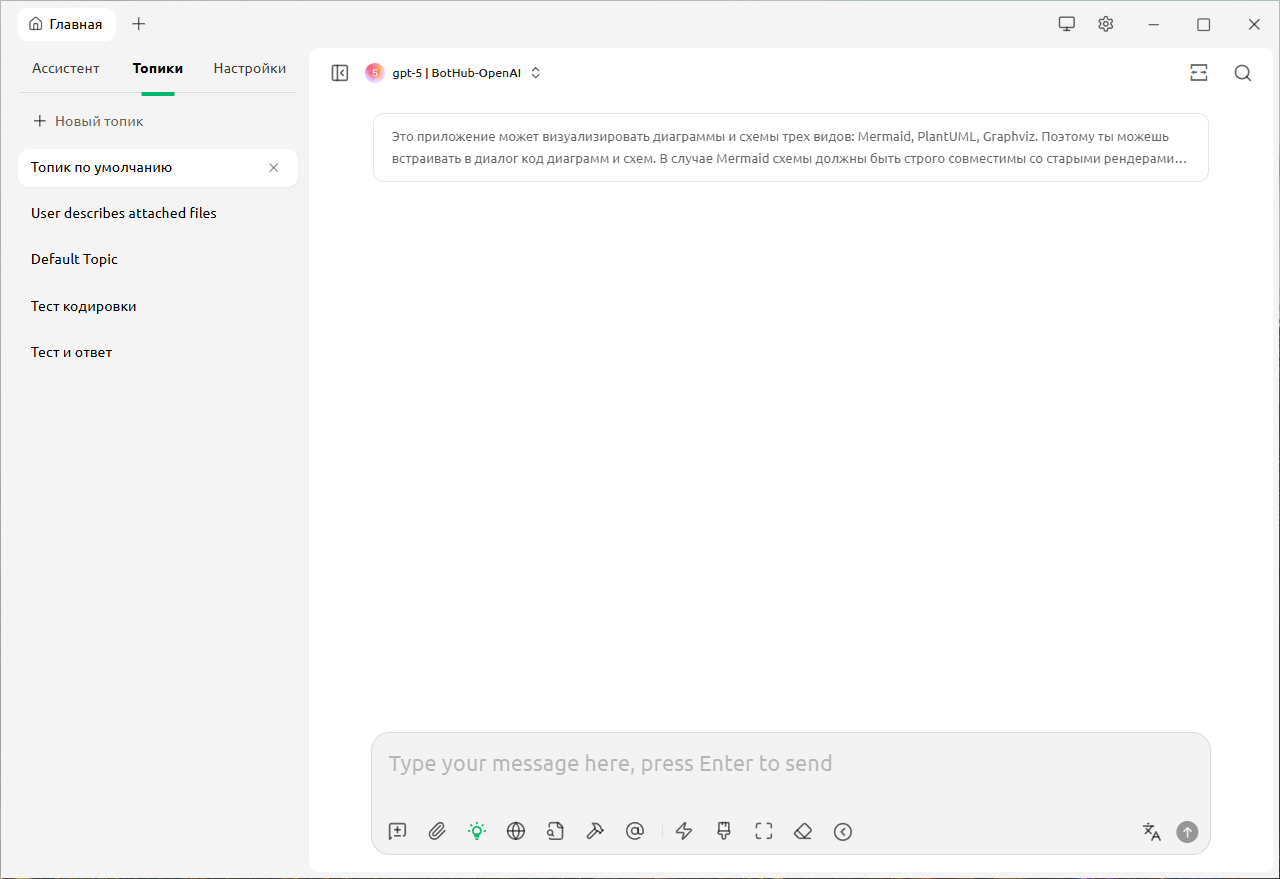
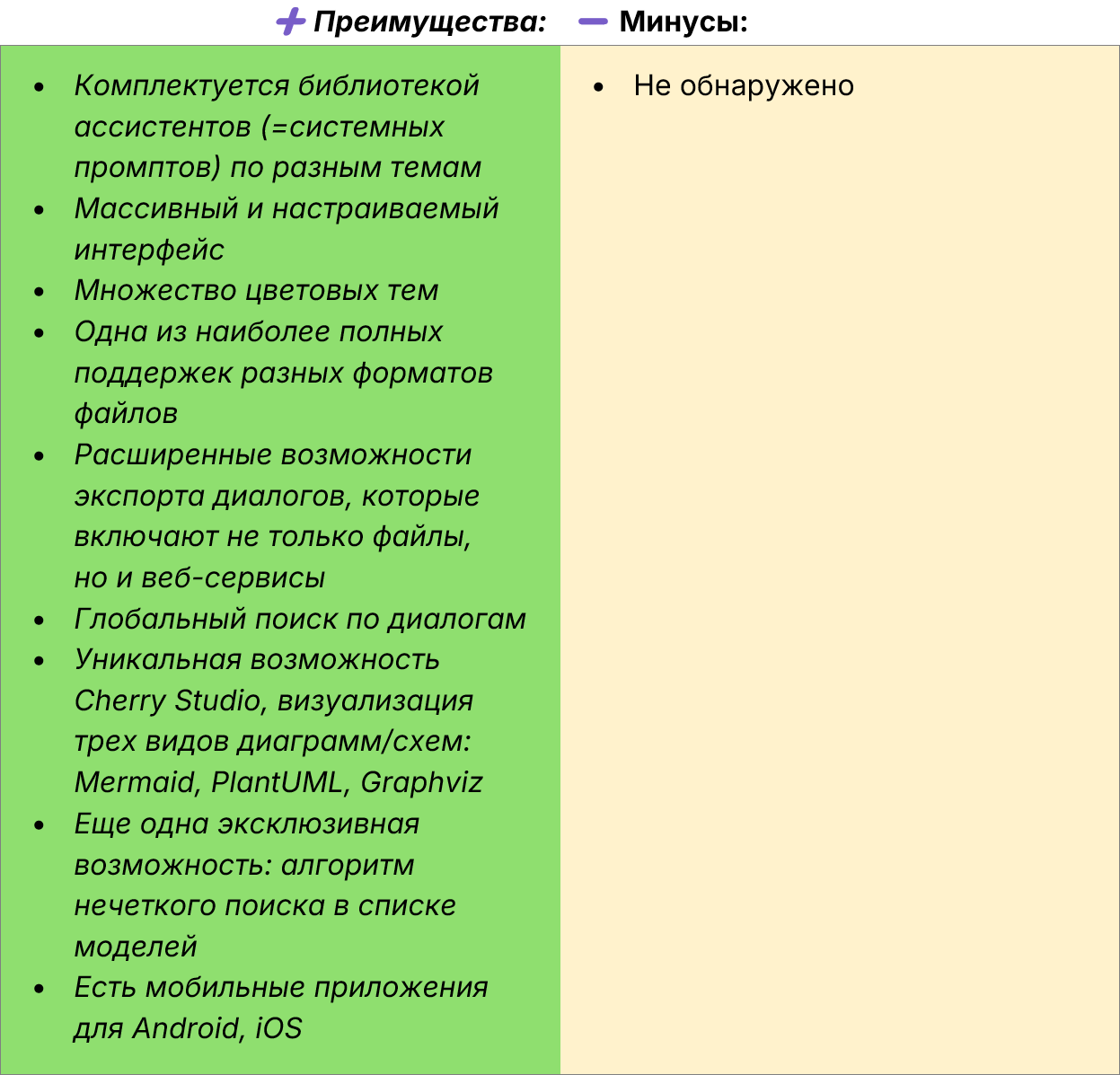
Cherry Studio is one of the most feature-rich Windows applications for accessing neural networks.
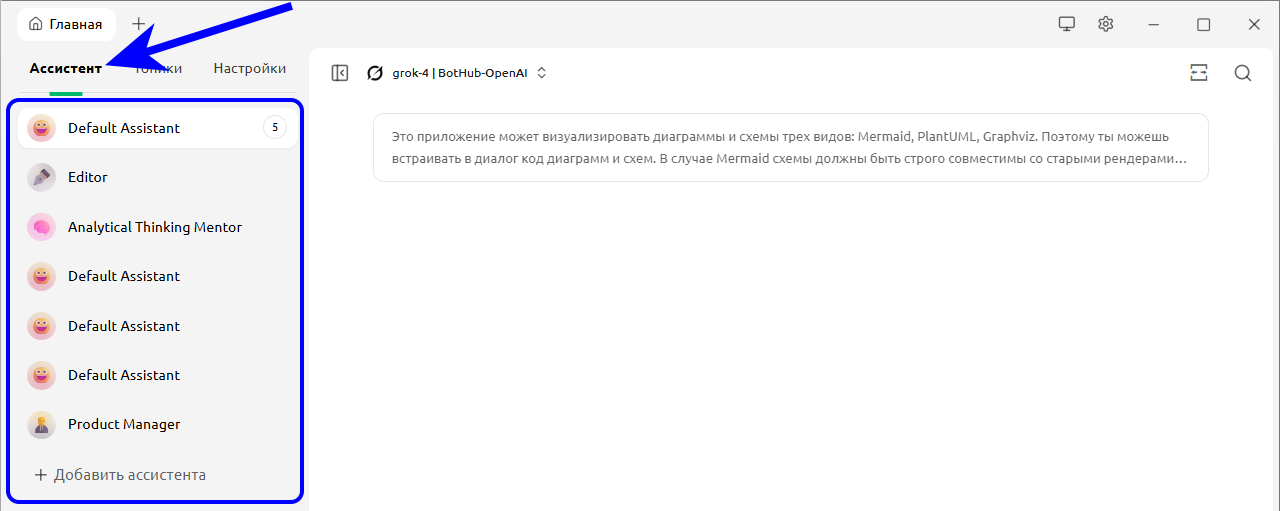
The left panel of the program, in addition to the familiar dialogs (or topics), also contains assistants. An assistant is a combination of several things:
-
system prompt with communication rules;
-
model parameters — from t° and top‑P to context length;
-
RAG knowledge base;
-
set of quick phrases and other conveniences.
🛠️ How to Install
Download the installer (Windows, Linux, macOS) from the official website and run it.
⚙️ How to Connect and What to Configure
To switch the interface language, open ⚙️ → General settings → Language and select your language.
Now let's connect the API:
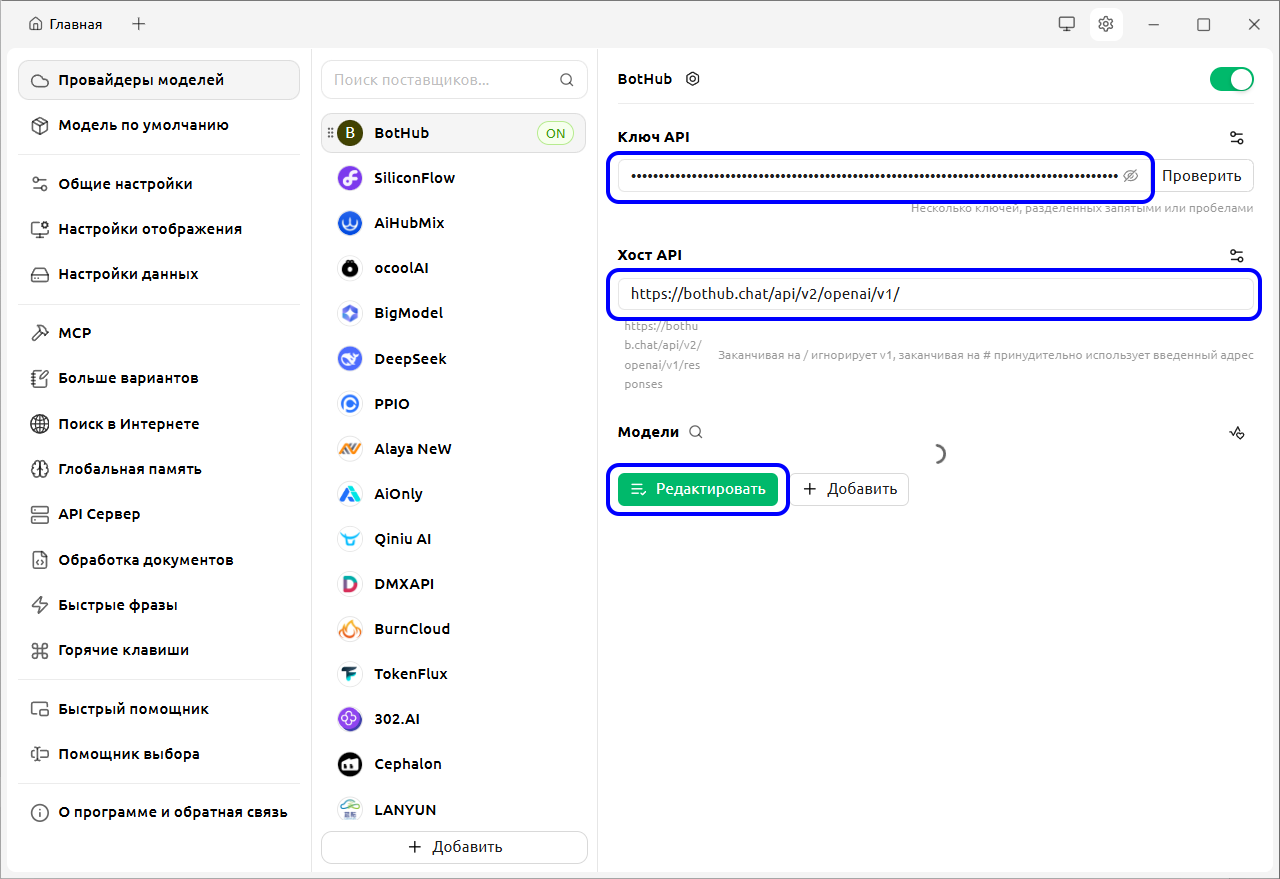
1. Go to Model Providers and click Add.
2. Enter the provider name "BotHub" and select type OpenAI‑Response.
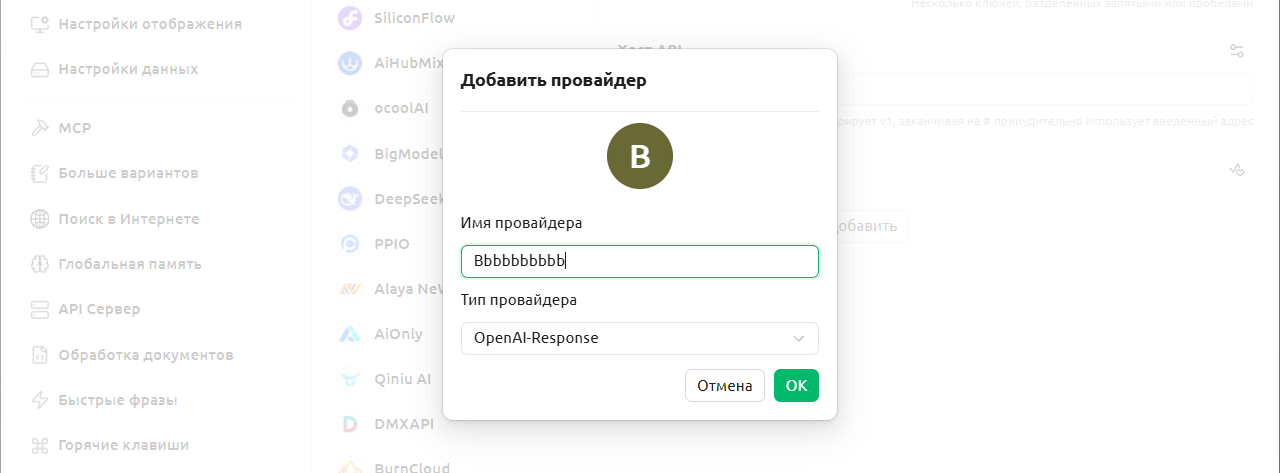
3. Specify the API Key (you can copy/generate it from this link) and API Host: https://openai.bothub.chat/v1/. Important: in our case, this address must end with a forward slash: /.
4. In the Models area, click Edit to load the list of available models.
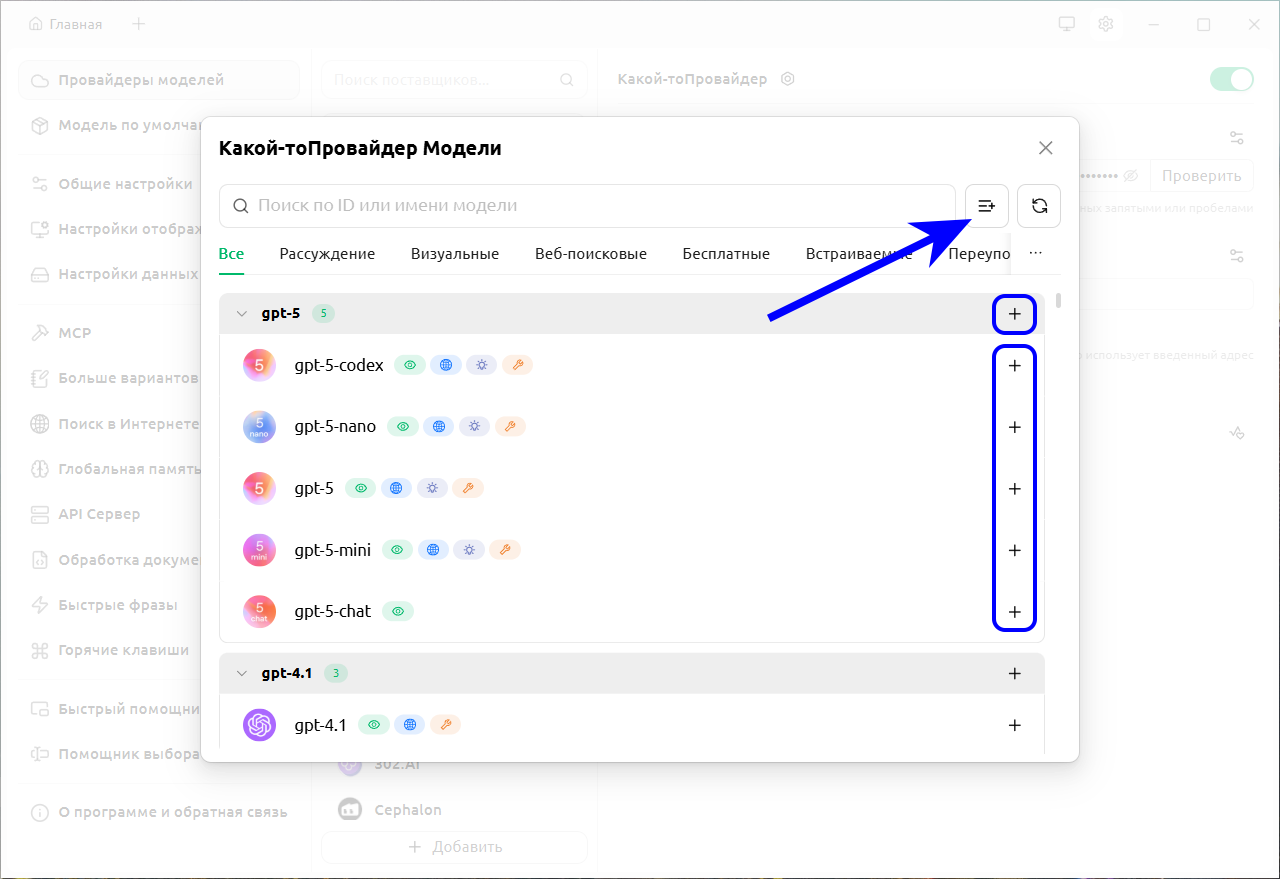
5. Now add models in several ways:
-
Add one by one (+ icon next to each model);
-
Add by groups;
-
Or click the Add to list button in the upper right corner — and Cherry Studio will load all models at once. Clicking again will remove them back.
After this, the connection is ready.
Let's configure the model list:
-
In the Default Model → Default Assistant Model section, you can select, for example, gpt-5 — then it will automatically activate when creating a new dialog.
-
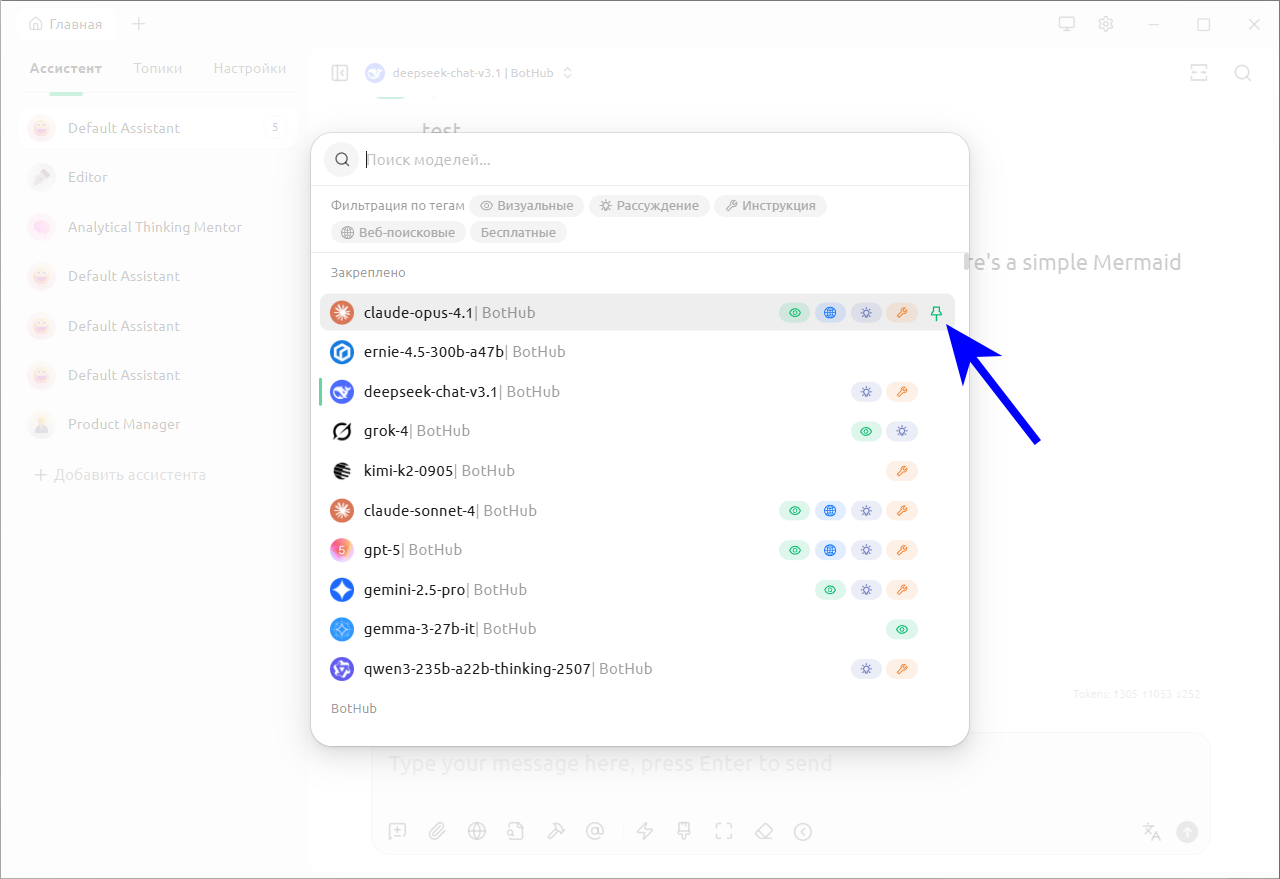
Returning to the main screen of the program, you can expand the list and pin priority models at the top using 📌 buttons.
Supplementing the System Prompt
So that the model knows Cherry Studio can build diagrams, it's worth adding information about this to the system prompt.
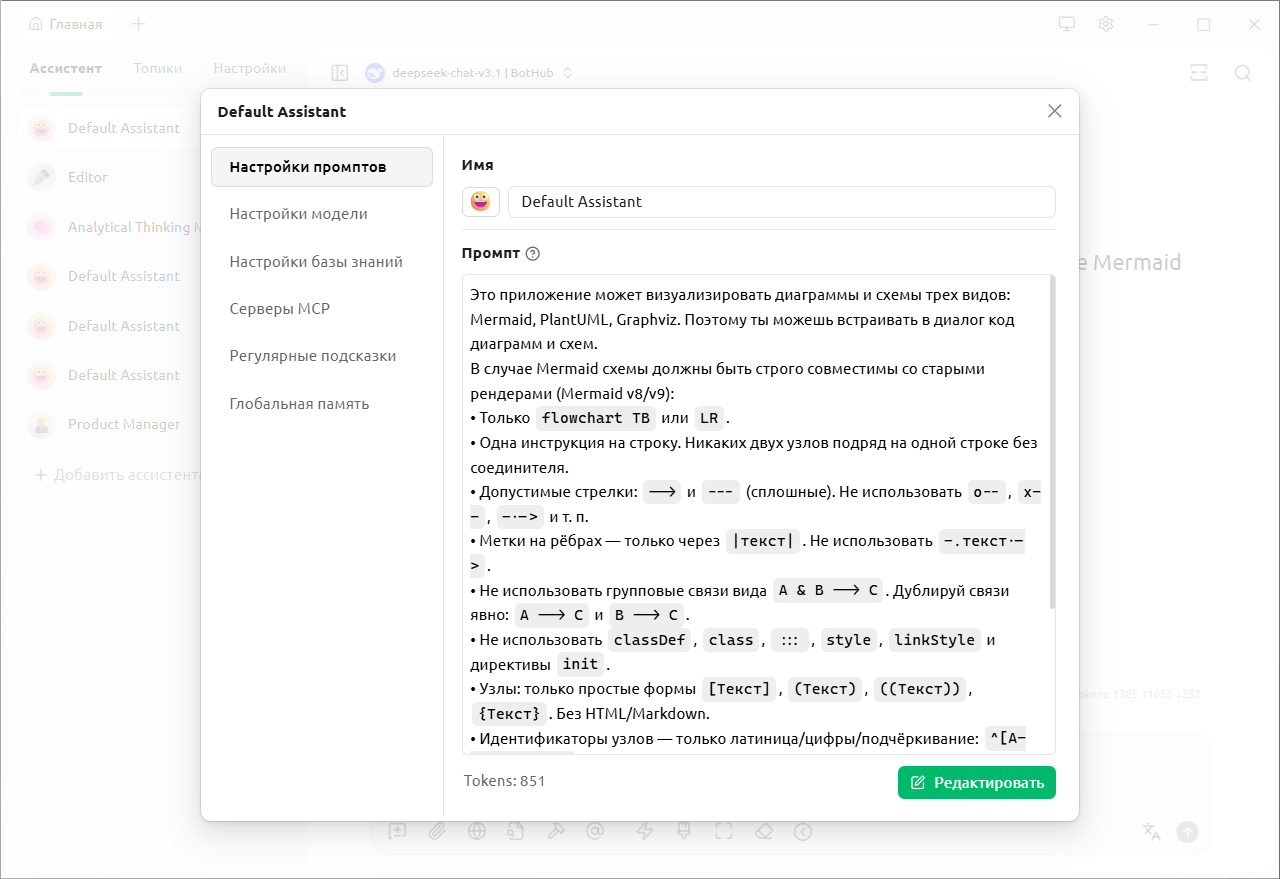
1. Select an assistant, right-click on it → Edit Assistant.
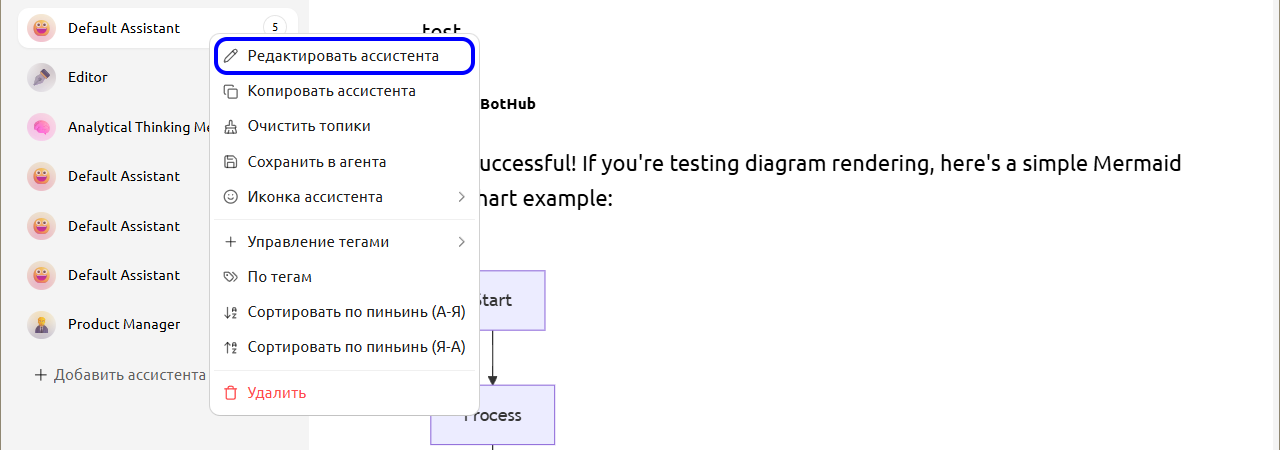
2. Click Edit and insert into the prompt:
This application can visualize diagrams and charts of three types: Mermaid, PlantUML, Graphviz. Therefore, you can embed diagram and chart code into the dialogue.
After this, save the changes — and Cherry Studio will correctly understand your requests with visualizations.
Important Clarification
Cherry Studio doesn't support all Mermaid innovations, so errors may occur when requesting complex Mermaid diagrams. Here's an example of an updated system prompt that helps avoid problems:
This application can visualize diagrams and charts of three types: Mermaid, PlantUML, Graphviz. Therefore, you can embed diagram and chart code into the dialogue. In the case of Mermaid, charts must be strictly compatible with old renderers (Mermaid v8/v9): • Only flowchart TB or LR. • One instruction per line. No two nodes in a row on one line without a connector. • Allowed arrows: --> and --- (solid). Do not use o--, x--, -.-> and the like. • Labels on edges — only via |text|. Do not use -.text.->. • Do not use group connections like A & B --> C. Duplicate connections explicitly: A --> C and B --> C. • Do not use classDef, class, :::, style, linkStyle and init directives. • Nodes: only simple shapes [Text], (Text), ((Text)), {Text}. No HTML/Markdown. • Node identifiers — only Latin/digits/underscore: ^[A-Za-z0-9_]+$. • Labels and texts — ASCII and/or regular letters (including Cyrillic), but no typographic hyphens/quotes; hyphen only - (U+002D). • Declare subgraphs as: subgraph Title ... end — without subgraph id[Label]. • Always close subgraph with end. • Do not use comments/directives, except simple strings, or no comments at all.
Generated charts can be downloaded in .png or .svg.
Perhaps in subsequent versions of Cherry Studio, Mermaid will be updated to the current version, and then this extended prompt won't be needed — you can return to its basic version.
🧙 How to Use Cherry Studio
The main feature is that communication is based on "assistants". They are smart sets where system prompt, model settings, RAG knowledge base, and a couple of technological things are collected: MCP, "regular phrases" and global memory. Thanks to this, assistants turn into mini-AI-personalities with special specializations.
If you don't need such extended capabilities, you can simply select the regular assistant (Default assistant) and not switch from it.
A bit about how to work with assistants:
- The system has a library of prepared assistants, there are several dozen of them here. To create an instance of such a library assistant, you need to click + Add Assistant and select from the list.
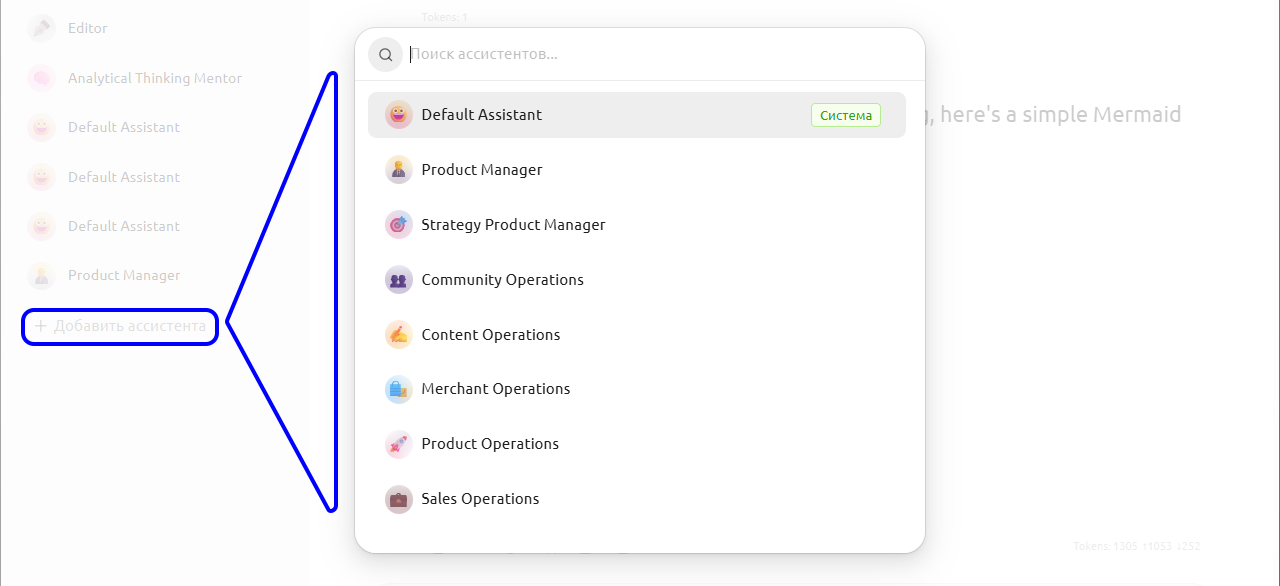
Important: you don't transfer the assistant directly, but create a copy. This means you can clone the prototype several times and adjust each instance for different tasks — for example, change t° or rewrite the system prompt for a specific communication style.
-
Dialogs (or, as they are called in Cherry Studio, topics) are tied to assistants. If you select an assistant in the first tab, then in the second you'll see only those dialogs that were created by it.
-
The assistant is not tied to a specific model — it can still be switched during the dialogue.
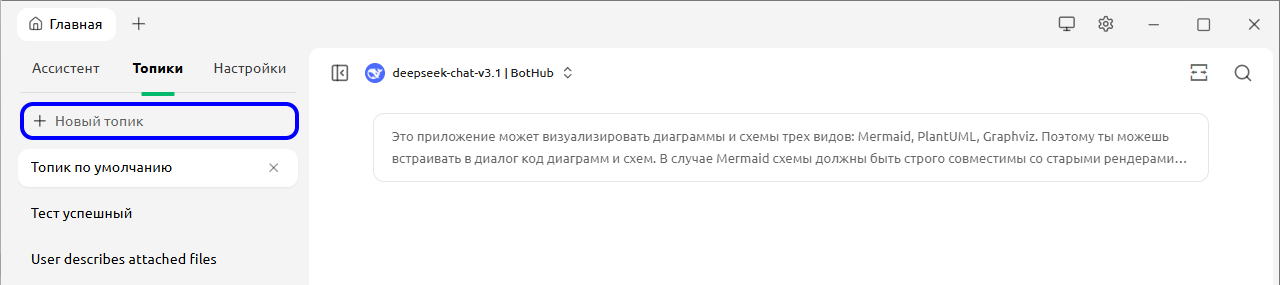
To simply start a new dialog in the current assistant, you need to click + New Topic.
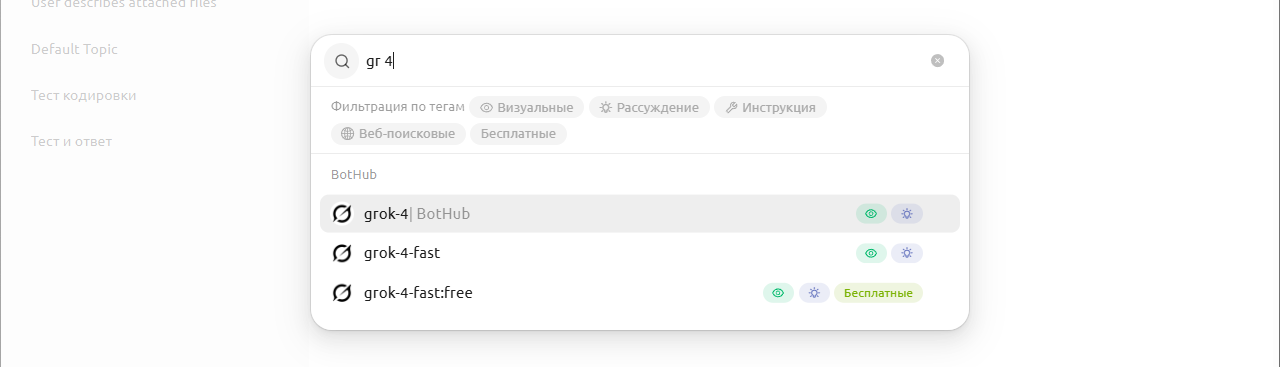
Model search in Cherry Studio is implemented using the fuzzy search principle: you don't need to remember the exact name — enter a couple of letter sequences from different parts, and the program will figure it out. For example:
-
gr 4will find grok-4; -
cl netornet clwill find all versions of claude‑sonnet.
More detailed version of the article: https://habr.com/ru/companies/bothub/articles/953986.